How to use a New Incognito /New InPrivate window in your browser
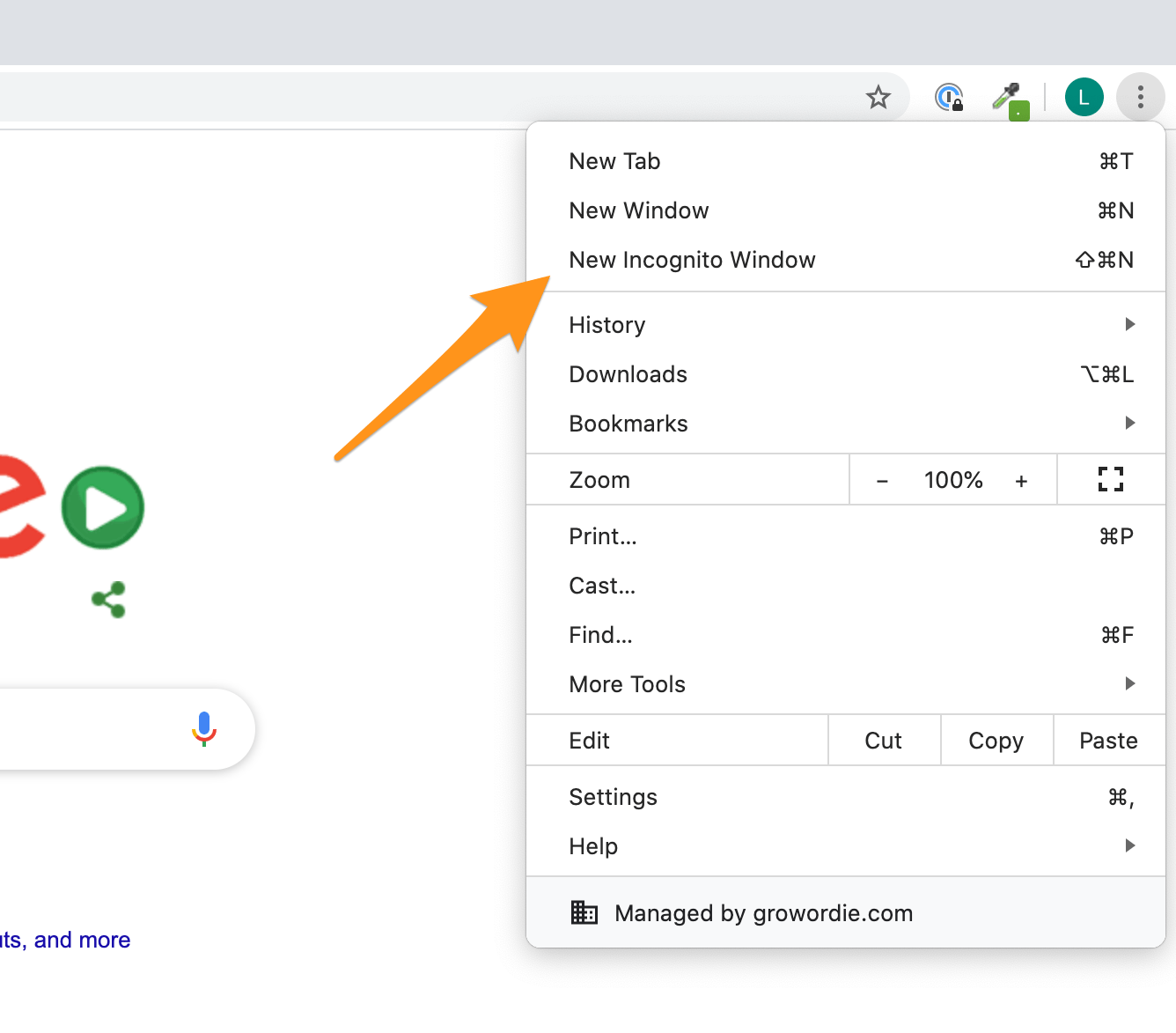
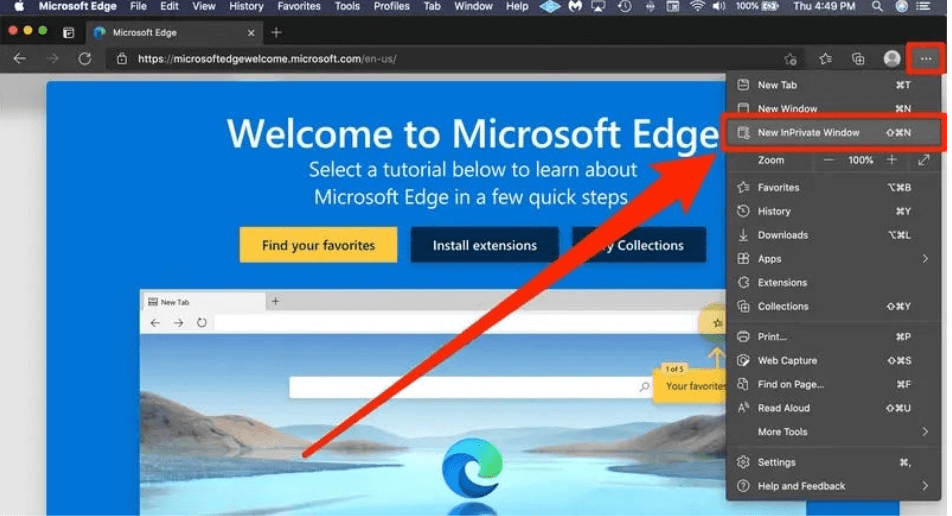
To select this option, click on the three vertical dots at the top right-hand side of your browser. A new menu will appear and depending on your browser select the option:
Chrome:
Edge browser:
(see here :https://helpdesk.tcsedsystem.edu/hc/en-us/articles/7888977932695-How-do-I-open-an-incognito-private-browser-in-Chrome-Edge-Firefox-and-Safari)
This should clear any caches in your browser.
Related Articles
My activation code does not work
If you are having trouble activating your RIVIAM account and the activation code you have received does not allow you to continue to add a password, we recommend users try to activate their accounts using the "New Incognito Window" or "New InPrivate ...
Create a new referral for a person
From the people search results, the user can create a new referral for that person. In the 'People' tab, search for the person needed. Click on the 'Select person' link. Image: People tab - Select person link To create a new referral, select the 'New ...
I've received an Internal server error
This usually happens when a RIVIAM referral session has been inactive for too long. In the event of this error, please click “go home to safety” and re-login to your RIVIAM account. Image: Internal server error message You can also try to use your ...
How to log into RIVIAM Web
Please follow these step-by-step instructions if you are logging into RIVIAM Web: Enter the RIVIAM website URL provided by your management team. The RIVIAM Web login page should appear: Enter your username/email address. If you have already received ...
How do I add a new user?
Please contact the relevant manager within your organisation to request the addition of a new user and specify when they will require access to RIVIAM. Authorised managers should raise a support ticket by emailing support@riviam.com requesting the ...